आपने RKSMBK App पर students के OCR answer sheets scan करके submit किए। App ने “सफलतापूर्वक अपलोड” का message दिखाया। Medal भी मिल गया। लेकिन Shala Darpan portal खोलकर देखा तो data वहाँ है ही नहीं — या कुछ students के marks हैं, कुछ के नहीं। यह समस्या Rajasthan के हज़ारों teachers को हर assessment cycle में परेशान करती है। Assessment की deadline सिर पर होती है, ऊपर से PEEO या BRC का pressure। ऐसे में app और portal के बीच की यह खाई बहुत तनावपूर्ण होती है।
इस article में हर वो कारण है जिससे RKSMBK app का data Shala Darpan portal पर sync नहीं होता — और हर कारण का सटीक समाधान।
पहले यह समझें: App और Portal के बीच Data कैसे जाता है
RKSMBK App (राजस्थान के शिक्षा में बढ़ते कदम) को School Education Department Rajasthan ने NIC के सहयोग से बनाया है। इस app में teacher अपनी Shala Darpan Staff ID से OTP-based login करते हैं। यही Staff ID app को portal से जोड़ती है।
जब teacher किसी student की OCR answer sheet की photo खींचकर upload करते हैं, तो app की AI engine उस sheet को read करती है, marks extract करती है, और वो data उस Staff ID से linked teacher के school के RKSMBK module में भेजती है — जो सीधे Shala Darpan portal पर reflect होता है।
इस पूरी chain में तीन critical links हैं:
- Teacher की Staff ID और उससे linked registered mobile number (OTP के लिए)
- Student mapping — app में सही class, subject और student का चुनाव
- OCR scan की quality — photo से marks सही पढ़े जाएं
इनमें से कोई भी एक गड़बड़ाया, तो या तो data portal तक पहुँचेगा ही नहीं, या गलत जगह जाएगा।
Problem 1: OTP नहीं आ रहा — Login ही नहीं हो पा रहा
यह सबसे पहली और सबसे common समस्या है। अगर app में login नहीं होगा, तो data sync का सवाल ही नहीं उठता।
कारण: RKSMBK App का OTP उसी mobile number पर आता है जो Shala Darpan Staff Window पर आपकी profile में registered है। अगर वो number गलत है, पुराना है, या किसी और के नाम का SIM है — OTP नहीं पहुँचेगा।
दूसरा कारण: कुछ teachers Truecaller या अन्य third-party SMS apps इस्तेमाल करते हैं जो OTP message को अपने inbox में रख लेते हैं और default messages app में नहीं दिखाते। Teacher को लगता है OTP आया ही नहीं।
समाधान:
पहले Shala Darpan portal खोलें — rajshaladarpan.rajasthan.gov.in — और Staff Login से अपना profile देखें। वहाँ Staff Window → My Profile में जाएं और देखें कि registered mobile number क्या है। वही number RKSMBK app का OTP receive करेगा।
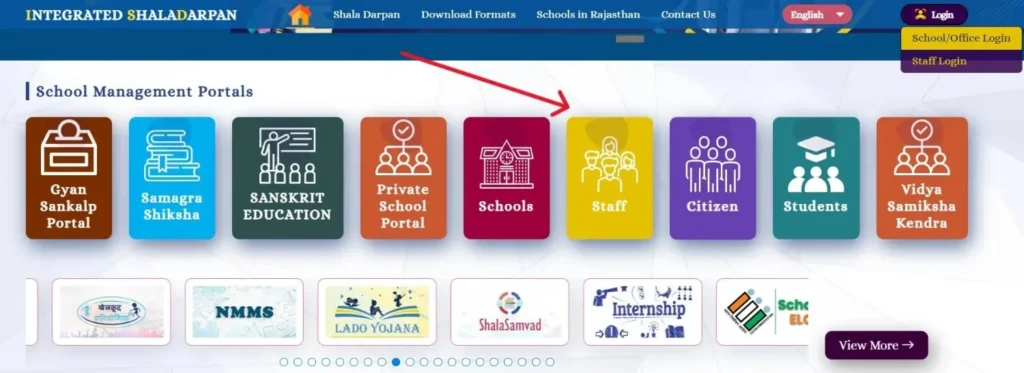
अगर number गलत है या update करना है, तो यह change portal पर ही होगा — app से नहीं।
Truecaller या किसी third-party SMS app का issue है तो: Phone Settings → Apps → Default Apps → SMS App → अपने phone का built-in Messages app set करें। उसके बाद app से दोबारा OTP request करें।
OTP आने में कभी-कभी 2–3 मिनट लगते हैं। Network busy हो तो और देर। बार-बार request न करें — OTP flood हो जाता है और सभी expire हो जाते हैं।
Problem 2: Login तो हो गया, लेकिन विषय Mapping नहीं दिख रही
Login होने के बाद app में जब teacher अपना class और subject assign करते हैं, तो कभी-कभी Subject Mapping (विषय मेपिंग) दिखती ही नहीं — या incomplete दिखती है।
कारण: RKSMBK program कक्षा 3 से 8 तक Hindi, English और Maths के teachers के लिए है। अगर Shala Darpan portal पर आपकी Staff Profile में subject assignment गलत है — यानी आप Hindi पढ़ाते हैं लेकिन portal पर किसी और subject से mapped हैं — तो app उसी portal data को mirror करता है। Mapping वहाँ नहीं, तो app में भी नहीं दिखेगी।
समाधान:
Shala Darpan Staff Login करें। School NIC → Staff Management → अपनी profile में जाएं। वहाँ देखें कि आपका subject, class और school सही assign है या नहीं। अगर कोई correction चाहिए, तो School Login से Principal या Head Teacher यह update कर सकते हैं।
Mapping सही होने के बाद RKSMBK App को Force Stop करें (Phone Settings → Apps → RKSMBK → Force Stop), फिर दोबारा खोलें और login करें। नया session start होने पर portal से fresh data fetch होता है।
Problem 3: Photo Upload हो गई, लेकिन OCR ने Marks गलत पढ़े
यह सबसे खामोश problem है — आपको पता भी नहीं चलता। App “upload successful” दिखाता है, portal पर data भी जाता है, लेकिन marks गलत होते हैं। कुछ students के answers जो tick किए गए थे, वो OCR engine ने read नहीं किए।
कारण: OCR (Optical Character Recognition) answer sheet की photo से OMR-style filled circles पढ़ता है। अगर photo में:
- चारों corners of the answer sheet clearly visible नहीं हैं
- Light uneven है — एक तरफ shadow पड़ रहा है
- Paper मुड़ा हुआ या टूटा हुआ है
- Student ने tick बहुत हल्का किया है
…तो OCR engine marks miss कर देता है या गलत option count करता है।
समाधान:
Photo click करने से पहले answer sheet को किसी flat surface पर रखें — floor, table, या कोई hard board। Overhead light में photo लें, flash off करें (flash से glare आता है)। Phone को sheet के bilkul ऊपर, straight angle पर रखें — tilted नहीं।
RKSMBK App में photo खींचने के दो तरीके हैं — सीधे camera से और gallery से upload। सीधे camera से upload better होता है क्योंकि app का camera interface sheet को frame करने में help करता है।
Photo लेने के बाद upload करने से पहले preview में check करें — क्या चारों corners दिख रहे हैं? क्या सभी filled circles visible हैं? अगर नहीं, दोबारा photo लें। यह 30 सेकंड का काम है जो बाद की बड़ी गड़बड़ी से बचाता है।
Problem 4: App में Student का नाम Select ही गलत हुआ
यह human error है लेकिन बहुत आम है — especially जब एक class में similar नाम वाले students हों। Teacher ने एक student की sheet scan की लेकिन app में उससे अगले या पिछले student का नाम select हो गया।
नतीजा: Portal पर एक student के marks दो बार आते हैं और एक का record blank रहता है। यह portal data को confuse करता है और correction बाद में मुश्किल होती है।
समाधान:
App में class और subject select करने के बाद जब student list खुले, तो scroll करके student का नाम confirm करें — सिर्फ पहला नाम नहीं, पूरा नाम। Rajasthan के सरकारी schools में “Ram”, “Ramesh”, “Rameshwar” जैसे नाम एक ही class में होते हैं।
अगर गलती हो गई है और data portal पर reflect हो चुका है, तो RKSMBK App में उस assessment को दोबारा खोलें। कुछ assessments में Re-upload या Correction का option होता है। अगर नहीं है, तो PEEO या Block Resource Person (BRP) से contact करें जो portal backend से correction करवा सकते हैं।
Problem 5: App ने “Success” दिखाया, लेकिन Portal पर Data अभी भी नहीं है
यह situation teacher को सबसे ज़्यादा confuse करती है।
कारण समझें: जब app “अपलोड सफल” दिखाता है, तो उसका मतलब सिर्फ यह है कि data app के server पर submit हो गया — portal पर reflect होने की guarantee नहीं है। Server और Shala Darpan portal के बीच sync delay होती है। Peak time पर (जब पूरे Rajasthan के लाखों teachers एक साथ upload कर रहे हों) यह delay 15 मिनट से 2 घंटे तक हो सकती है।
दूसरा कारण: App version outdated है। पुराना app उस API endpoint को call करता है जो portal ने update कर दिया है — data technically send होता है लेकिन portal उसे accept नहीं करता।
क्या करें:
पहले 30–45 मिनट wait करें, फिर portal check करें। अगर तब भी नहीं आया तो:
Play Store खोलें और देखें कि RKSMBK App का latest update install है। अगर नहीं है, पहले update करें। Update के बाद दोबारा login करें और Pending Uploads section देखें — कुछ versions में यह option होता है जो failed submissions को retry करने देता है।
अगर app update है, portal पर data नहीं है, और 2 घंटे हो गए हैं — तो यह server-side issue हो सकता है। ऐसे में अपने PEEO (पंचायत प्रारंभिक शिक्षा अधिकारी) या Block Education Officer को सूचित करें। उन्हें NIC helpdesk के माध्यम से issue escalate करने का access होता है।
Phone और Internet: जिसे Teachers अक्सर ignore करते हैं
RKSMBK App कुछ specific requirements के साथ काम करता है जिन्हें ignore करने पर data silent fail हो जाता है — error message भी नहीं आता।
Internet connection
App को upload के समय stable data connection चाहिए। अगर बीच में signal गया और आपका phone WiFi या 4G पर switch हुआ, तो upload incomplete रह सकता है। Upload के दौरान phone screen on रखें, दूसरे heavy apps बंद करें।
Phone storage और RAM
अगर phone की internal storage 90% से ज़्यादा full है, तो app OCR processing ठीक से नहीं कर पाता। Phone की Gallery में जाकर unnecessary photos और videos हटाएं। App का cache भी clear करें: Phone Settings → Apps → RKSMBK → Storage → Clear Cache.
Android version
RKSMBK App को Android 4.0 या उससे ऊपर चाहिए। बहुत पुराने phones जिनका OS update नहीं हुआ, उन पर app के कुछ features काम नहीं करते। अगर आपके school में सरकार द्वारा दिए गए tablets या phones हैं, तो उन पर यह problem कम आती है।
⚡ Read Also: Mission Start 2.0 Shala Darpan: Weekly Table Entryजब सब कुछ सही है, फिर भी Data Portal पर Missing है
कभी-कभी teacher की तरफ से सब कुछ सही होता है — सही login, सही student select, अच्छी photo, stable internet — लेकिन portal पर data नहीं आता। यह portal-side issue है।
Shala Darpan portal NIC (National Informatics Centre) द्वारा maintain किया जाता है। Assessment period में जब state के सभी schools एक साथ data भेज रहे होते हैं, तो portal के servers पर बहुत load होता है। कभी-कभी particular module या district का data sync temporarily fail होता है।
ऐसी situation में:
- अपना submission screenshot/record रखें — app में जो “success” message आया उसका screenshot लें
- अपने PEEO को WhatsApp या call पर inform करें
- अगले दिन सुबह portal check करें — overnight maintenance के बाद data usually sync हो जाता है
अगर 24 घंटे बाद भी नहीं आया: Shala Darpan का helpline number portal के “Contact Us” section में मिलता है। Block स्तर पर BRC coordinator भी NIC ticket raise कर सकते हैं।
FAQs
RKSMBK App login के लिए Staff ID कहाँ से मिलेगी?
Shala Darpan portal (rajshaladarpan.rajasthan.gov.in) पर Staff Login में जाएं। Login होने के बाद My Profile section में आपकी 7-digit Staff ID दिखती है। यही ID RKSMBK App में login के लिए इस्तेमाल होती है।
क्या RKSMBK App बिना internet के काम करता है?
Photo click करना और locally save करना possible है, लेकिन upload के लिए internet ज़रूरी है। Offline mode में जो data save होता है वो upload queue में जाता है — जैसे ही internet आएगा, app उसे submit करने की कोशिश करेगा। लेकिन यह automatic नहीं है, manually app खोलकर check करना होगा।
एक ही student की sheet दो बार upload हो गई — क्या होगा?
Portal पर duplicate entry आ सकती है जो assessment report को affect करती है। PEEO या Block Resource Person से तुरंत contact करें। वो backend से duplicate entry delete करवा सकते हैं।
App update के बाद पुराना data कहाँ गया?
App update होने पर locally stored pending data कभी-कभी clear हो जाता है। इसीलिए update करने से पहले check करें कि सभी pending uploads complete हो चुके हैं। अगर update के बाद data missing लगे, Pending Submissions section देखें।
एक ज़रूरी बात जो सब जानें
RKSMBK App और Shala Darpan portal का system powerful है लेकिन यह perfect नहीं है। Real-world conditions में — rural areas में 2G signal, पुराने Android phones, assessment deadline के दिन portal पर भारी load — problems आएंगी।
सबसे important बात: हर successful upload का screenshot रखें। App में जो confirmation message आए, उसे capture करें। यह आपका proof है कि आपने समय पर submit किया, चाहे portal sync में देर लगे। और अगर कोई problem बार-बार आ रही है, अपने block के दूसरे teachers से share करें। ज़्यादातर solutions field में काम कर रहे teachers से ही निकलते हैं।